
Smarter protection for your child — even when you’re not around
KiddoShield is an AI-powered parental control system for your child’s Windows PC and Android phone — all managed from your own smartphone. No need to sit beside them — everything happens automatically.
Install on your child’s device
📥 Free · Windows 10/11 · Android 8.0+ · No credit card
10,000+ trusted by parents!
What is your child searching at 10 PM?
Which sites are they visiting while you’re at work?
How many hours on screen today — PC and phone?
Is harmful content slipping onto their screen?
KiddoShield is the answer. You don’t need to sit beside them. Everything happens automatically — and you’re always the first to know.
Everything you need. Nothing you don’t.
Block the right sites, never the wrong ones
Instead of rigid blacklists, KiddoShield uses AI to automatically classify millions of websites into categories: Education, Entertainment, Social Media, Adult, Gambling, Violence…
- New sites classified instantly — no waiting for list updates
- Block an entire category with a single tap
- Allow exceptions individually (e.g. YouTube but block social media)
- Study sites are never blocked by mistake
Know now — not later
When your child types a keyword on Google, YouTube, or any search engine, KiddoShield’s AI analyzes it within seconds. If dangerous content is detected, a push notification appears on your phone instantly.
Self-harm, adult content, drugs, extremism, violent content
Gambling, age-inappropriate content
- Alert on your phone within 30 seconds
- Detects from search intent — not just visited sites
- “Math homework grade 8” — safe, no alert triggered
On-time usage — without nagging
Set specific schedules: which hours your child can use the PC, and when it locks automatically.
- Mon–Fri: only 6–8 PM after school
- Weekends: extended but still limited
- Daily max — PC locks when time is up
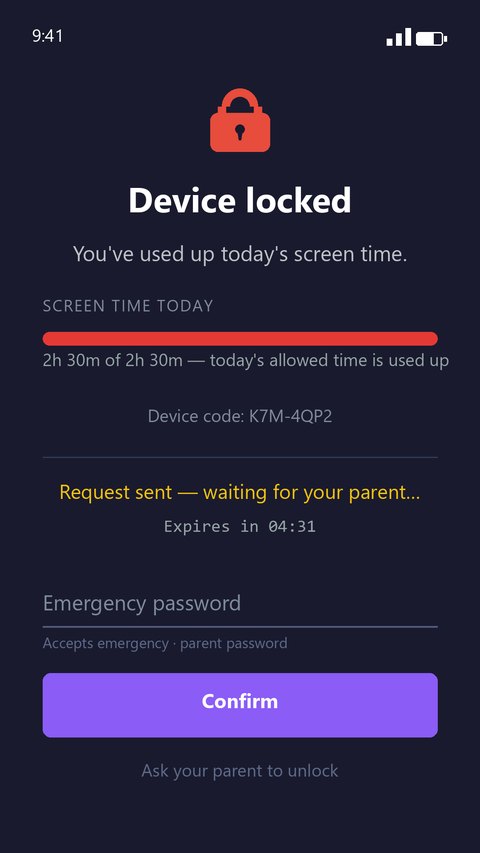
- Child requests extra time → you approve with one tap → PC unlocks
See everything your child visited
Full browsing history in two views: timeline or by domain. No detail missed.
- Timeline: every page, every moment
- By domain: hours on YouTube vs study sites
- Clear category label on every site
The most visual way to monitor
System auto-captures your child’s screen at intervals you set and uploads securely for review anytime from your phone.
- Fully automatic — no complex setup
- Encrypted — only your account can view
- 30-day storage, auto-deleted after
- Delete all images anytime
Know where your child is — without asking
The phone reports its location on a schedule you control. Draw the places that matter — home, school, grandma’s — and get a notification the moment your child arrives or leaves.
- Live location, on the same map as the rest of your family
- Safe zones: alerts on arrival and departure
- History of the day — where, and for how long
- Fake-GPS apps are detected and flagged
Why KiddoShield?
| Feature | Traditional Software | KiddoShield |
|---|---|---|
| Website classification | Manual blacklists | AI-powered, always updated |
| Search alerting | Not available | Detect dangerous keywords instantly |
| Screen time | Hard blocks | Flexible schedule + time extension |
| Web tracking | None or basic | Full timeline + domain grouping |
| Visual monitoring | Not available | Automatic screenshots (Windows PC) |
| Where your child is | A separate app to buy | Location + safe zones (Android) |
| Real-time alerts | Slow email | Instant push notification |
| Remote management | Must be at the computer | Mobile app — from anywhere |
One licence. Whichever device your child actually uses.
Same parent app, same pairing code, same price per device.
| Feature | Windows PC | Android phone |
|---|---|---|
| Website blocking by category + AI classification | ✓ | ✓ |
| App & game blocking | ✓ closed outright | ✓ kept from opening |
| Schedules + daily time limits | ✓ | ✓ |
| Web history, search keywords, watched videos | ✓ | ✓ |
| Lock the device remotely | ✓ | ✓ |
| Periodic screenshots | ✓ | — |
| Live location + safe zones | — | ✓ |
| Shut the device down remotely | ✓ | Locks instead |
| Protection against removal | ✓ system level | ✓ warns you + locks |
Each device does the job that suits it: the PC lets you see the screen, the phone lets you see where your child is. Every other feature is on both.
What your child sees
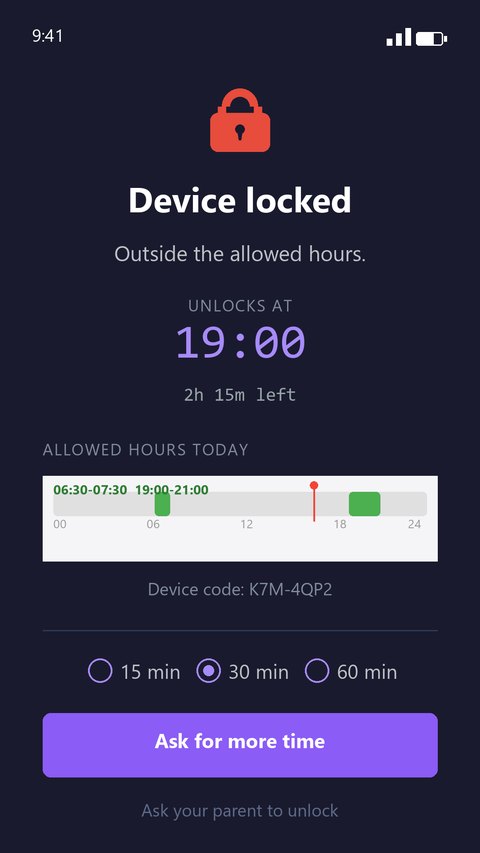
Outside the allowed hours: the phone locks, and shows how long until it opens
Daily limit used up: your child asks for more time, you approve from your phone
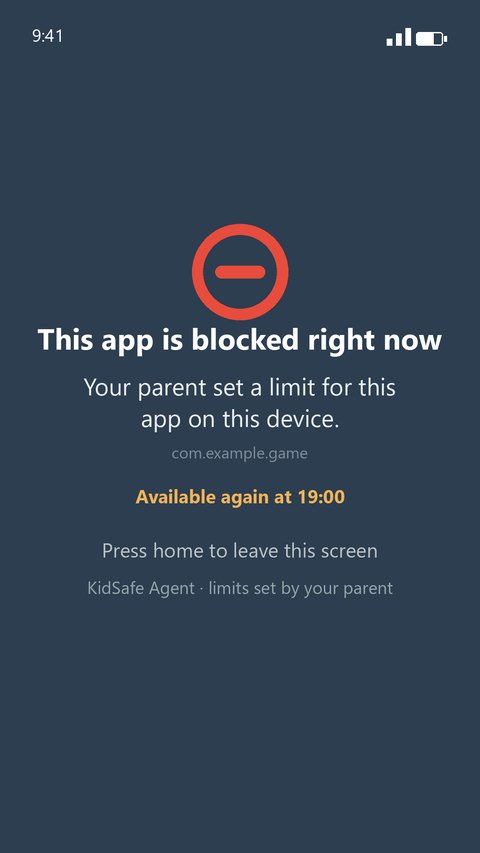
Opening a blocked app: a block screen appears, with the time it becomes available
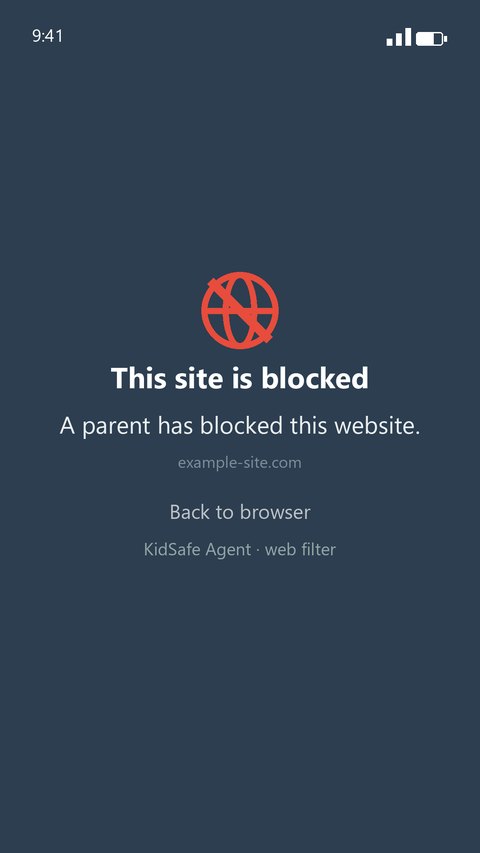
Visiting a blocked site: stopped right there in your child’s browser
Up and running in minutes
Install on your child’s PC
Install KiddoShield on the Windows PC your child uses. It runs silently in the background, starts with the computer and protects 24/7.
Download InstallerInstall on your child’s Android phone
Install KidSafe Agent from Google Play on the phone your child uses, then grant the permissions it asks for. It starts again after every restart, and warns you if anyone tries to remove it.
Get it on Google PlayInstall Parent App
A different app, on your own phone: KidSafe Admin, from the App Store or Google Play. This is the one you watch and control from.
Link & Control
Connect the two with a simple pairing code — the same code flow for a PC and for a phone. You’re now in full control, from anywhere in the world.
Step 02 — the parent app, for your own phone
Trusted by parents
Always listening & improving
“The internet is developing so fast. Children study online — we really need protective shields like this. Truly grateful, because kids are so curious about everything…”
“Very easy to use. The screen capture feature is especially great. Even when traveling for work, I can still monitor my child’s computer usage.”
“Parents in my child’s class recommended it to our group. I bought it because my child was playing games too much and neglecting studies. Really effective!”
“Works quite well. Less than $2/month when you think about it. Kids are very tech-savvy these days. Hope the software keeps updating without raising the price!”
Simple pricing
No hidden fees. Cancel anytime.
Free Trial
1 week
Full premium features
- AI website classification
- Dangerous search alerts
- Smart screen time control
- Full web activity history
- Automatic screenshots
- Push notifications
- Remote smartphone control
Monthly
per month
Flexible, cancel anytime
- AI website classification
- Dangerous search alerts
- Smart screen time control
- Full web activity history
- Automatic screenshots
- Push notifications
- Remote smartphone control
Annual
per year
Less than $2/month
- AI website classification
- Dangerous search alerts
- Smart screen time control
- Full web activity history
- Automatic screenshots
- Push notifications
- Remote smartphone control
- Free upgrades
- 24/7 support
Pay after trial
Try full features first, pay only when satisfied.
Money-back guarantee
Full refund in the first week if not satisfied.
Free upgrades
All new versions included during license period.
24/7 Support
Technical staff always ready to help you.
Start protecting your child today
Leave your email and phone number. We’ll send you a free trial license so you can experience all features — no credit card required.